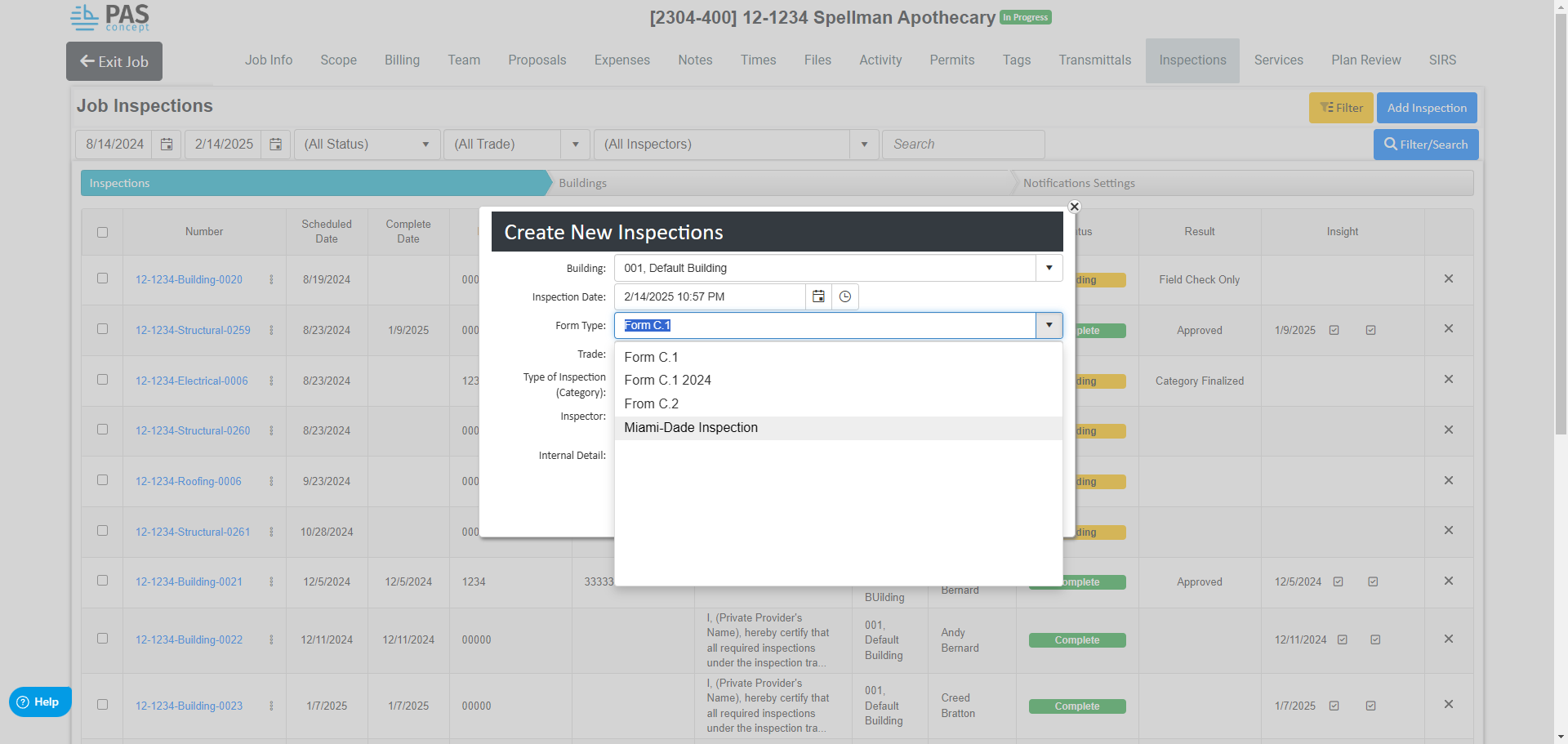
The Inspection Module in PASconcept now supports the configuration of selectable fields based on the form chosen for an inspection. This enhancement allows users to define specific fields that can be selected according to the requirements of the chosen form, improving efficiency and reducing errors.
For instance, if the Miami-Dade County inspection form permits only five specific trades, the system can be configured so that only these five options are available, simplifying the process for inspectors and administrators.
Step-by-Step Configuration
1. Configuring Inspection Results (Disposition)
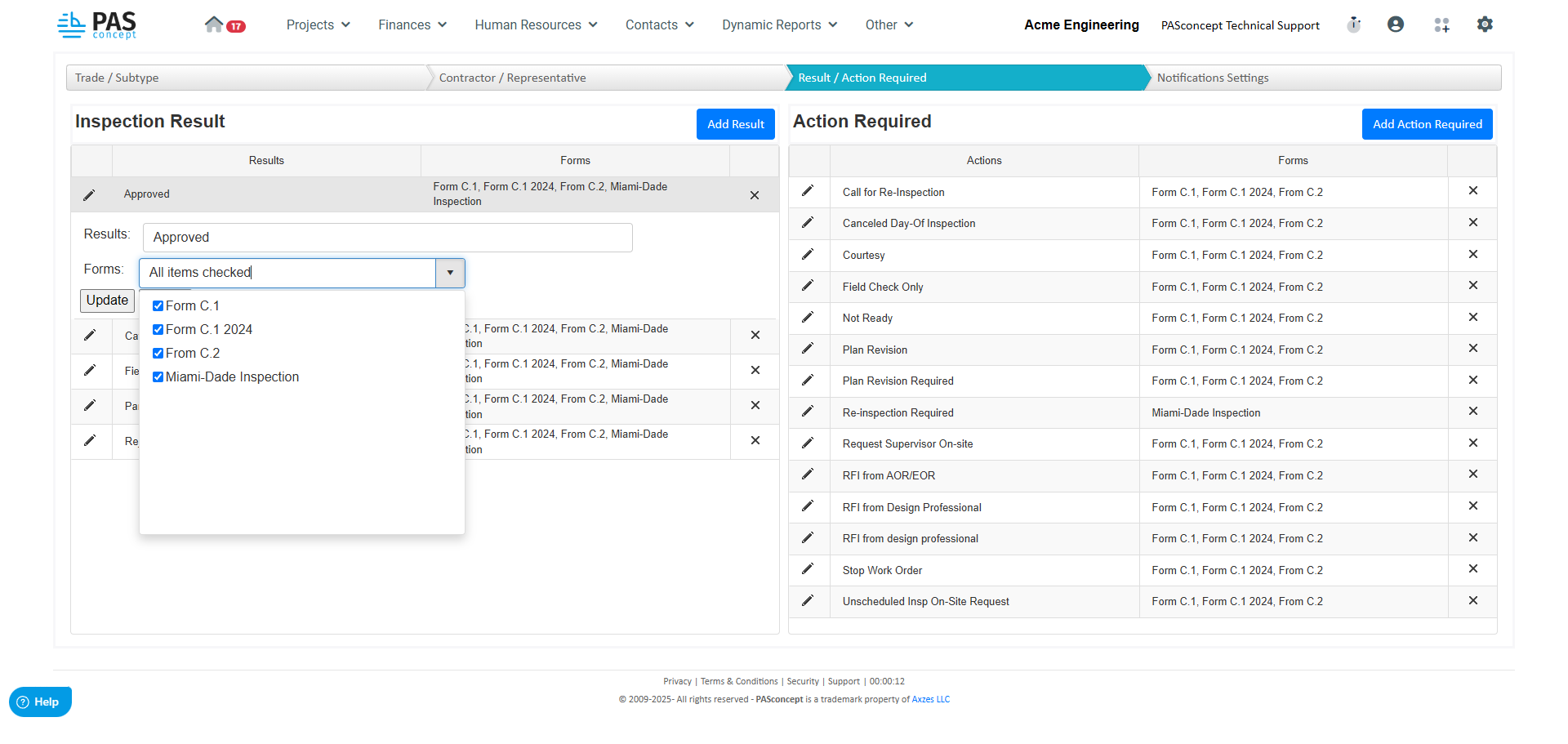
The first step in configuring selectable fields is to set up the Disposition, also known as Inspection Results.
Steps to Configure:
Navigate to the Inspection Settings area.
Click on the Results/Action Required tab.
Choose one of the following:
Modify an existing inspection result.
Add a new inspection result.
Important Note:
For the Miami-Dade County inspection form, only the following four results are allowed:
Approved
Approved Partially
Denied
Information Only
These options must be entered exactly as written. Variations such as "Partially Approved" instead of "Approved Partially" may cause system errors.
2. Configuring Action Required
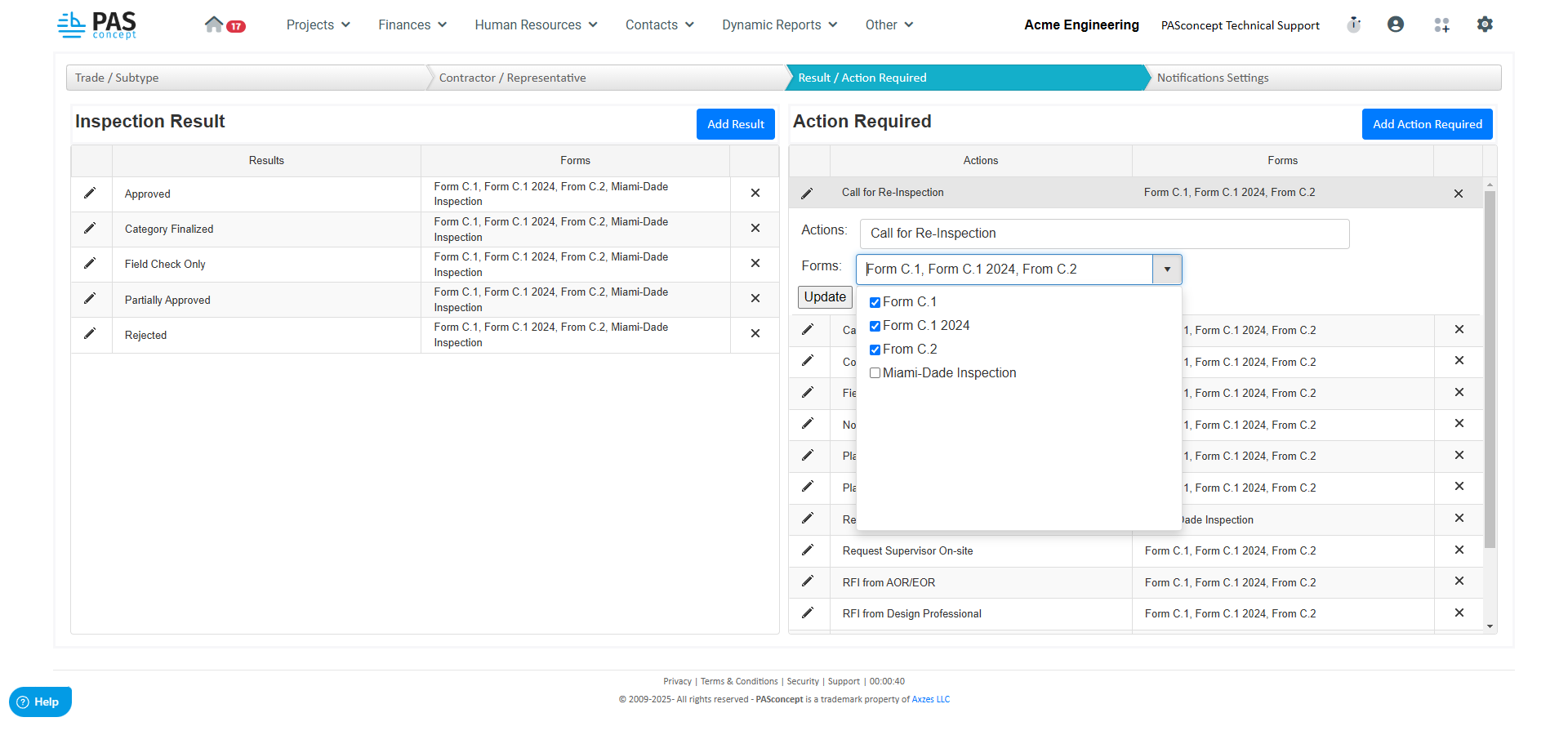
Once the inspection results have been set up correctly, proceed with configuring the Action Required fields.
Steps to Configure:
In the same Results/Action Required tab, navigate to Action Required.
Modify existing actions or add missing selectable "Actions Required" to the catalog.
3. Configuring Trade
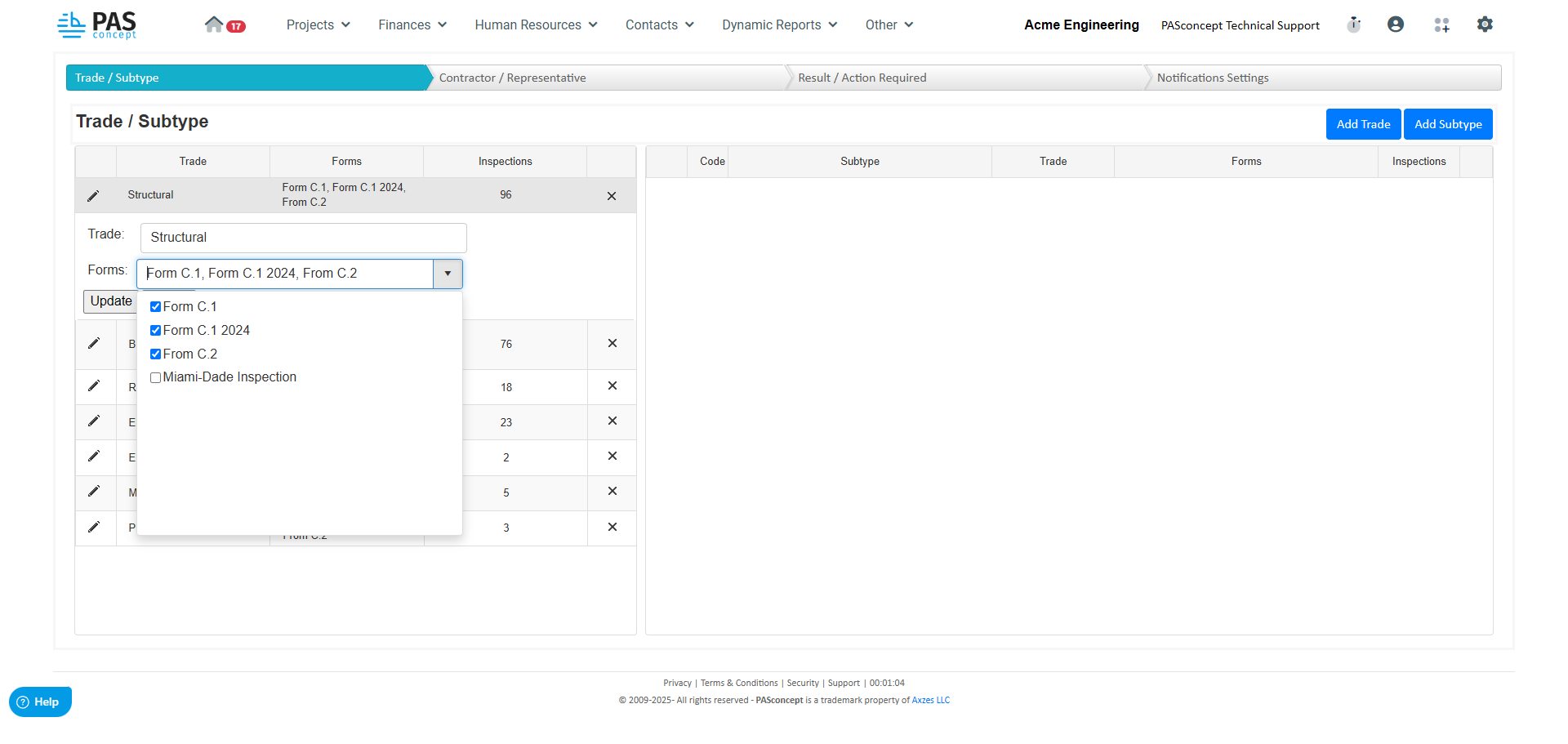
Next, configure the Trade fields to ensure only relevant trades are selectable for the chosen inspection form.
Steps to Configure:
Navigate to the Trade section.
Modify existing trade options or add new ones based on the form’s requirements.
4. Configuring Subtype
After configuring trades, move on to Subtypes. Ensure that only the necessary subtypes are available for the selected form.
Steps to Configure:
Navigate to the Subtype section.
Modify or add new subtypes as needed.
5. Configuring Type and Subtype with Codes
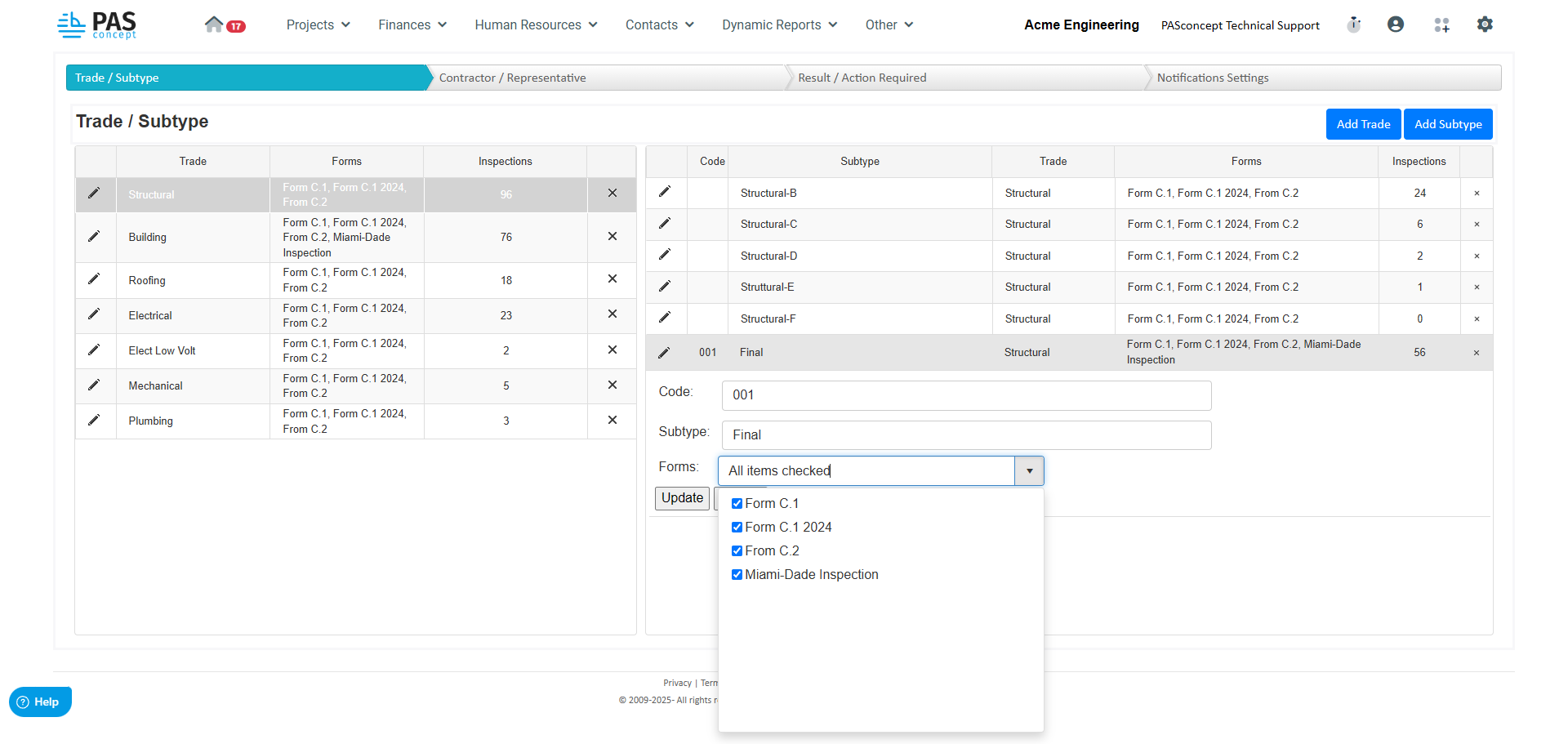
The configuration process is similar for Type and Subtype, with the addition of a Code field.
Steps to Configure:
Navigate to the Type or Subtype section.
Modify existing options or add new ones.
For subtypes that must be selectable on the Miami-Dade County Inspection Form, ensure that:
The subtype is activated for that form.
The corresponding Code is added (this field is necessary for Miami-Dade County inspections).
Finalizing the Configuration
Once all the required fields (Disposition, Action Required, Trade, Type, and Subtype) have been set up and verified, the system will now filter or modify selectable fields based on the form chosen. This ensures a streamlined, accurate, and user-friendly experience for inspectors and administrators configuring inspections in PASconcept.
Was this article helpful?
That’s Great!
Thank you for your feedback
Sorry! We couldn't be helpful
Thank you for your feedback
Feedback sent
We appreciate your effort and will try to fix the article