Intro
Building a proposal in pasconcept is as easy as 1, 2, 3, that’s made possible through our proposal wizard. Simply navigate to your Proposals page then click on the  Button on the upper right hand corner of your screen. This will navigate you to the proposal wizard, a six step process for the generation of your unique proposal.
The PASconcept Proposal Wizard contains the following key steps:
- Step 1: Clients
- Step 2: Basic Info
- Step 3: Fees and Scope
- Step 4: Payment Schedule
- Step 5: Terms and Conditions
- Step 6: Attachments
- Step 7: Preview
Step 1: Client
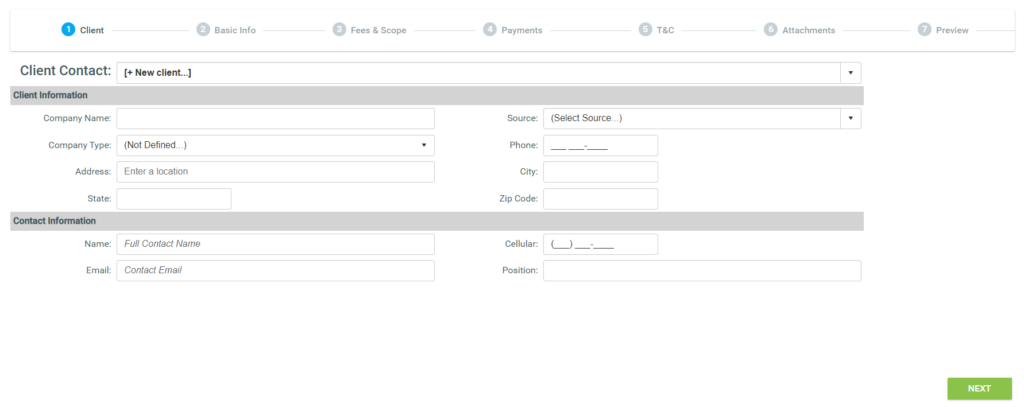
Here you have one of two choices. You can either select a client from your existing client list, or you can enter a new client by filling out the information shown below. Keep in mind that the following items are required for the creation of a client; Company Name, Primary Contact Name, Email, Phone, and Client Type.
If a previously entered client is selected, a series of information will be shown below. Under the heading Projects, you will find:
- The number of open proposals that you have with this client.
- The pending proposal value, that is the dollar value of those proposals
- The accepted proposal value, that is the total value of all the proposals that this client has accepted, and
- The jobs total value, that is the dollar value of all jobs associated to this client
You can also click on the client page shortcut and see more information on this client. Additionally to the right, you’ll see a balance header below that will be information regarding this client’s balance amount paid remaining balance. Even any outstanding balance that has been passed due for more than 90 days. Additionally, you can see how much of the debt associated to this client has been marked as bad debt.
After selecting client or entering client information, you can hit the green button labeled next to take you to the next step.
Step 2: Basic Info
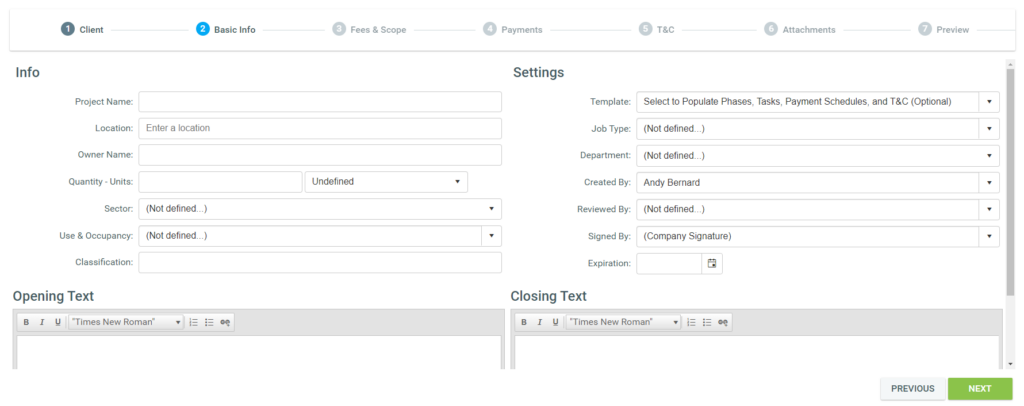
Here you can enter the basic information associated to your proposal. This is divided into two key sections: Info and Settings. Info related to informational elements related to the potential subsequent project whereas related to settings for the proposal which either prepopulated subsequent steps or mark items of internal interest to your company.
Info
Project Name refers to the name that you’d like to give this project. Location refers to the physical address of the project. Owner Name, this optional field is for the owner of the property on which the project will take place. Quantity and Units, here you can define a numerical value for the quantity and units associated to the project. If the project is 50,000 square feet you can enter 50,000 in the quantities field and using the dropdown, select square feet as your unit of measure. Sector refers to the sector in which the project is associated. Sectors can include public, private, institutional, and again, this field is optional. Use and Occupancy refers to the designation of the property, that is to say, what is this property used for? This can be, for example, business, daycare, institutional, high hazard, and many others. But this field is also optional. Classification refers to the classification associated to the property and project as well.
Settings
Settings refers to general settings you can apply towards this proposal. One of the most powerful settings is in fact your Template Selection. Using your template selection, you’re able to prepopulate multiple areas of your proposal in one click. These areas include your opening and closing text, your fees and scope, your payment schedule, your terms and conditions and more. For a guide on how to build your proposal template, click here.
In Job Type, you can select any of the pre-entry job types you’ve defined for your company. Department here you can select for which department this project would apply, or rather, which department is going be working on it. The Created By field is populated by default by the person who has chosen to create this proposal. This refers to the person who has built the proposal. Reviewed By refers to the person responsible for reviewing the work of the person who created the proposal, that is to say, the employee responsible for going through and reviewing that all the numbers make sense and that all the estimates are in accordance with the standards of the company. Signed By this option refers to the person whose signature is going to appear on the proposal. In many cases companies have a standardized company signature. If there’s only one principle whose signature appears on the proposals. However, this field allows for a specific employee or company members signature to appear on the proposal. Expiration, this is a date by which this proposal will no longer be able to be accepted by your client. Now, don’t worry. This date is entirely customizable by you. If by chance the client needs additional time to make up their mind as to whether they’d like to accept the proposal, you can always manually change this after you’ve sent it to your client.
Below these two fields are Opening Text and Closing Text. In your proposal, you’ll have an opening paragraph where you can speak directly to the client, thanking them for the opportunity to provide them with this proposal, and giving a little bit of background, either on your company or on why you are particularly suited to take on the task of this work.
Closing text, much like the opening text. The closing text gives you an opportunity to touch base with the client once more, fielding any questions they might have or giving you the opportunity to provide additional information.
Step 3: Fees and Scope
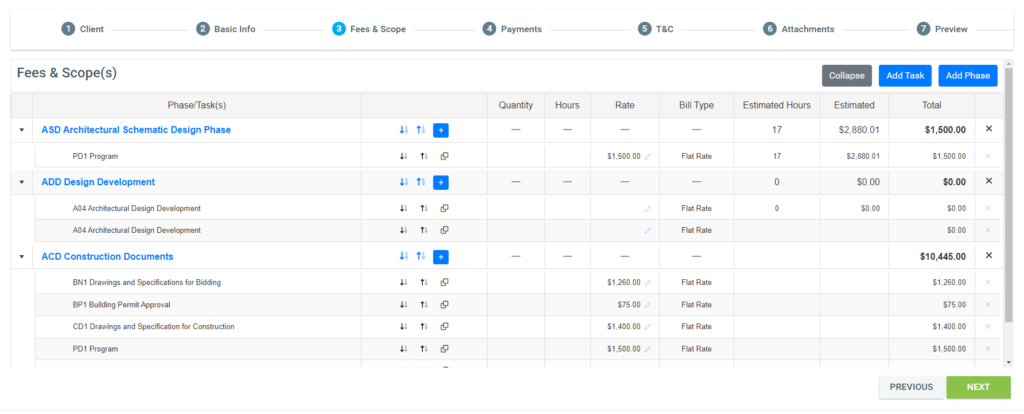
If by chance you’ve already selected a template that has fee and scope information, you’ll be able to see the populated Phases and Tasks here.
If not, you can easily add them by clicking on the add task or add phase buttons On the right hand side. The add phases button will only appear if you as a company have defined phases in your company’s settings. You can learn more about that here.
Adding a Phase
A phase can be added by clicking the ad phase button. The first thing you’ll select is your phase template. These are ones that you’ve already populated in your phase catalog, uh, in your company settings. This will populate all the required fields, however you are now free to customize it at your leisure.
You can now define an order. You can also add a subtitle or change any of the predetermined areas to suit your needs and the needs of this specific project.
Adding a Task
You can add a task by clicking the add task button. This will allow you to select a task from your task catalog or create one as needed. If you select a task from your task catalog, many of the fields will automatically populate. You can now edit or adjust as necessary.
The task estimator at the bottom of the page allows you to estimate the cost associated to a specific task. You can do this by entering both the role and number of hours you estimate will be needed to complete this task. This will give you a dollar figure based on your rates per type of position. If the update task rate is checked, this will automatically update the dollar value of the task. Otherwise, you can add that element manually by copy and pasting the total into your rate section.
Now that you’ve added your tasks and phases, there are still some modifications that you can make directly from the fees and scope table. You can change the position of the fees and tasks by clicking on the up and down arrows to move them up or down in the table. This will also move them up and down in the order in which they’re presented on the proposal. You can duplicate a task by clicking on the duplicate button, or you can delete the task by clicking on the delete button at the end of the row. Additionally, you’ll notice a small edit icon next to the rate or dollar value associated to a task. By clicking this, you’re able to change certain values associated to that task (including quantity, hours, and rate) directly from the table without having to enter or navigate away from this page.
To save, simply click the check button or to disregard the changes made, click the X button in the form.
Step 4: Payment Schedule
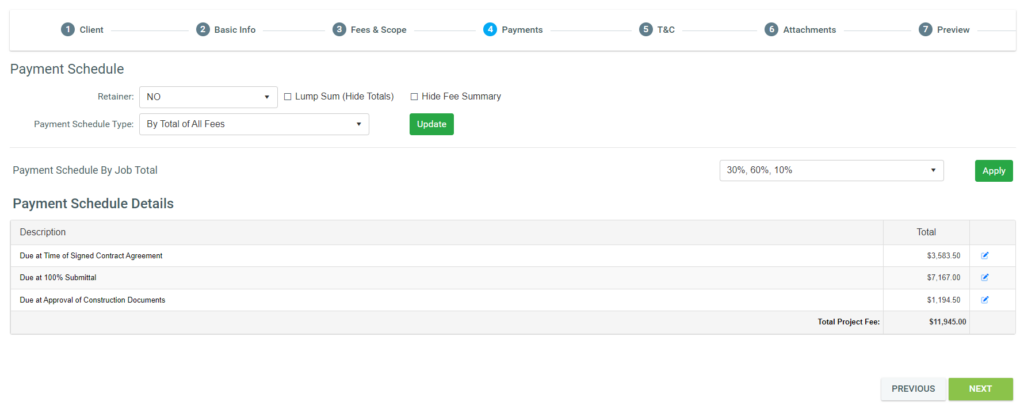
Now, there are a few settings associated to your payment schedule. The first of which is determining whether this proposal goes with a retainer. If “yes” is selected in the retainer field, once the client accepts the proposal, they will automatically be navigated to the invoice so that they can submit payment. If you’ve already set up a payment portal through PASconcept, this process will be made easier for your client where they can simply click the “pay here” button and be navigated to that payment portal. You can find more information on that here. The following two check marks refer to lump sum and fee summary.
Lump Sum
In the fee summary, each line item is delineated with its associated value. If you just want to show your client a total lump sum, then click on the “Lump Sum/Hide Total” check box .
Hide Fee Summary
If you don’t wish to show them a fee summary at all, you can hide the fee summary outright by clicking on the hide fee summary check box. The only financial figures that your client will see, if you do check this option, will be the delineation of their payment schedule and association to the invoices.
Payment Schedule Type
The following option you’ll find is payment scheduled type. The payment scheduled type can be defined in many ways. You can choose to determine a payment schedule by your Total of All Fees, by individual Tasks, by individual Phases, or simply by a Custom Fee Schedule. If you select any of the following, total of all fees, tasks, and phases, you can then select any of the percentage breakdowns so that invoices can be automatically generated. You can do that by the drop-down select option that is in the center and to the right of the page . Here you can select from the payment schedules that you’ve entered and associated to your company . By selecting and hitting the green apply button, your payment schedule will be automatically populated. If by chance you want to deviate from your standard payment schedule, you can always select custom. Custom will allow you to build your invoice items individually.
Payment Schedule Items
If you wish to change the name of any of the payable items, you can simply click on the edit button on the right hand side of any of your rows to change the description of that item. However, if you wish to change the total value of that line item, you’d have to create them using the custom option mentioned previously.
You’re now ready to hit the green button on the bottom corner and proceed to terms and conditions.
Step 5: Terms and Conditions
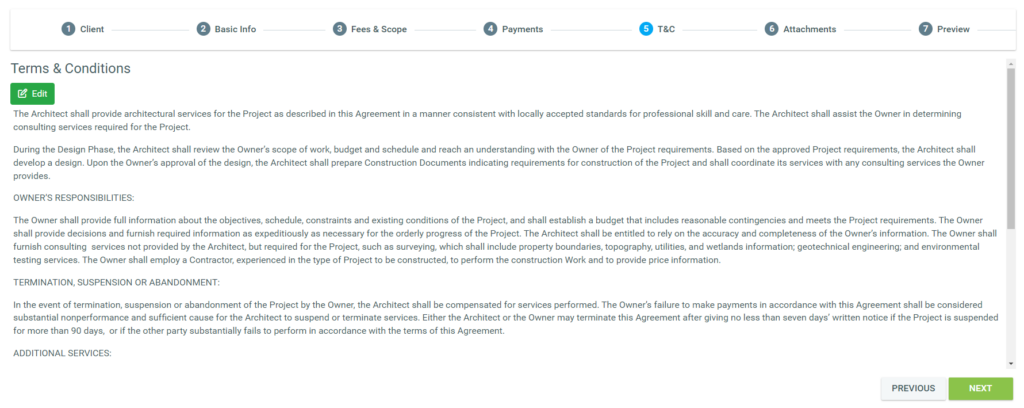
If by chance you selected a template that already has term terms and conditions preselected, you will find those populated here. However, if you didn’t, you would simply select one and apply it in this moment. To modify or change the Terms and Conditions associated in this area, you can simply hit the green edit button. This will allow you one of two options you can change the text associated to the currently selected Terms and Conditions, or you can switch to a different Terms and Conditions Template associated and already entered for your company. To save these changes, simply hit the green update button to disregard these changes, simply click the gray close button. This will revert the Terms and Conditions to their previous state.
Step 6: Attachments
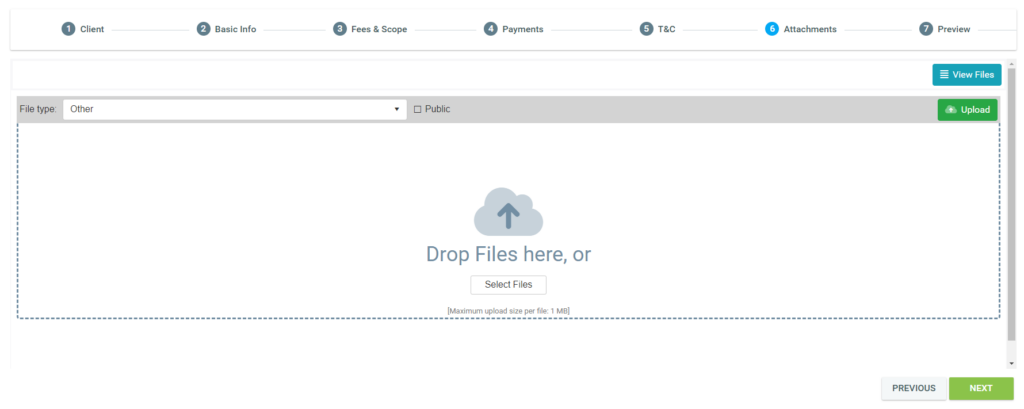
Step six is a completely optional step here, you can upload any additional documents you wish to share with your client at the proposal step. These can include:
- Documents the client has sent you previously
- Pictures of the property that’s associated to the proposal
- A list of additional services that you can provide and their rates
- And Much More
To upload them, you simply drag and drop those files into the drag and drop field, wait for it to fully load and then hit the green upload button to confirm your upload. If the item has been successfully uploaded, you’ll be able to see a table with that item as a reference. Keep in mind that by default, PASconcept has a limit of 1Mb per uploaded document, however, if you find you need to raise this limit, simply let your PASconcept Representative know.
There are a few options that you still have at this moment. You can access these options by clicking on the three vertical dots associated to the line you wish to modify. You can view, you can download, you can edit, or you can delete. When editing, you can now edit the name of the file should you choose to change it, as well as defining the file type associated to that upload. Perhaps the most important option being the “public” check box if an item is checked as public, this means that you are providing the client the ability to see this item. Otherwise, your client will never have access to this file.
Step 7: Preview
This allows you to preview your full proposal. From here, you can review to make sure that everything is presented in the way in which you’d like to have it be presented for your client. Your proposal is now ready to be sent to your client by clicking on the green send button more information on how to send your proposal here.
Additionally, having made this proposal, you can save it as a template. Should this be a type of work that you do regularly and you’d like to reference the work that you’ve done already, you can click the Saves template, which will allow you to name the template type so that it can be selectable in the future.
Was this article helpful?
That’s Great!
Thank you for your feedback
Sorry! We couldn't be helpful
Thank you for your feedback
Feedback sent
We appreciate your effort and will try to fix the article